How to Get the Chords for Your Suno Song and Play It Live
You made a song in Suno and you want to play it, not just play it back. Suno gives you the audio and the lyrics, but no chord chart. Here is how to get the chords over your lyrics and take the song on stage with its backing track.
Written for QMe 1.48 on iPhone and iPad. From the team that makes QMe Prompter.
The short answer
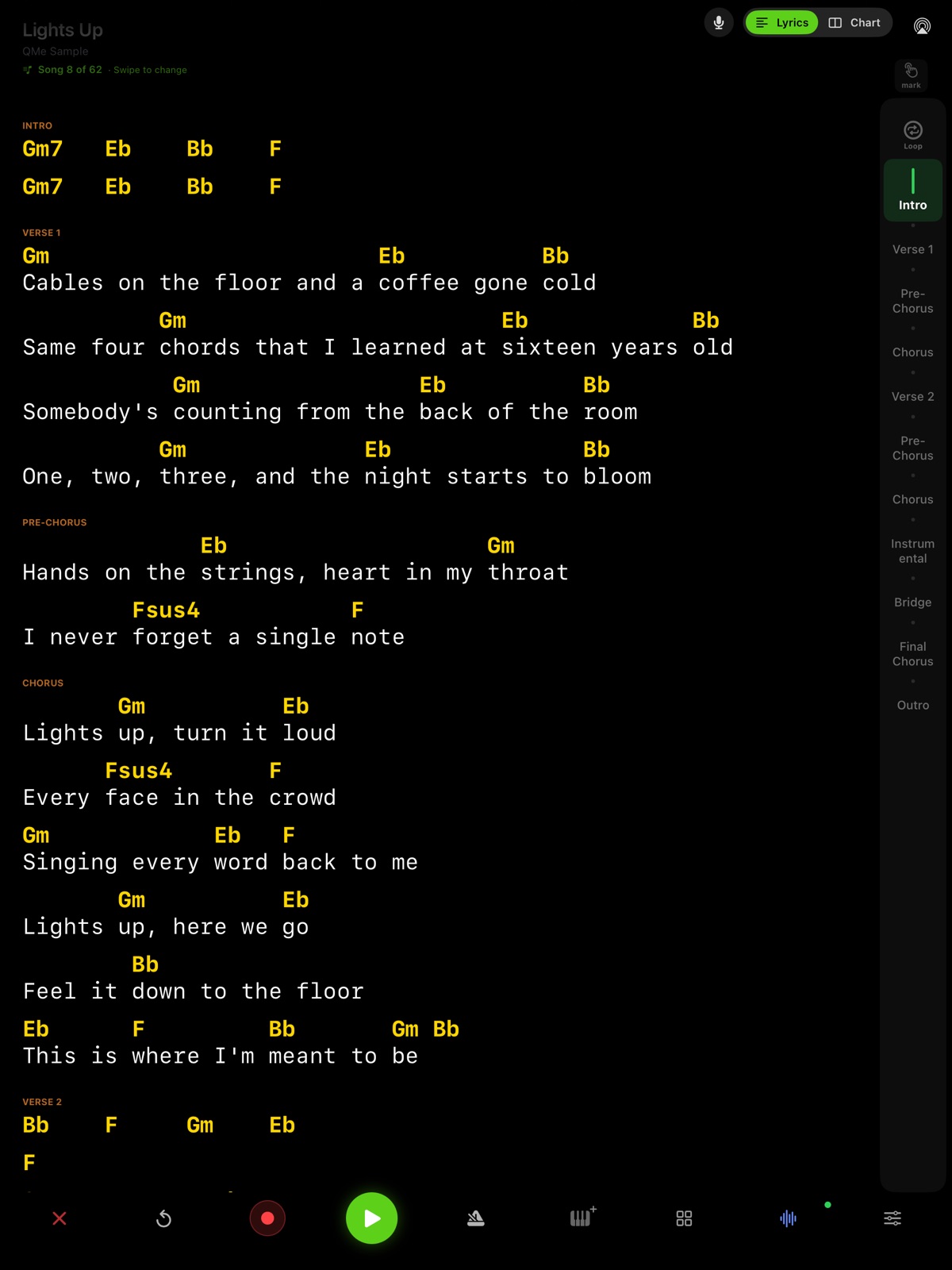
Suno does not export chords. In QMe Prompter, bring your Suno song in with its stems, then tap Chords from stems. QMe writes the chords over your lyrics, on the word where each change lands, gives the intro, instrumental and outro their own chord rows, and fills in the key and tempo. The same stems become your backing track, with your vocal left out, so you can play the song live the same day.
Why this used to take an evening
A Suno song arrives finished: vocal, band and a mix. If you want to play guitar or keys along with it, you have to work the chords out by ear, line by line, then write them over the right words. For one song that is an evening. For a set of ten it is a week.
Chords from stems turns that into a check instead of a job. You start from a chart that is already written and fix only what you hear differently.
1. Make the song in Suno and download the stems
Copy the song's lyrics from Suno and download the stems, the ZIP of separate tracks (vocals, drums, bass, keys and the rest). Stems come with a paid Suno plan. Keep Suno's section tags in the lyrics, like [Verse 1], [Chorus] and [Bridge]; QMe turns them into sections.
2. Bring it into QMe
In QMe choose Add Song, then Import from Suno. Paste the lyrics and pick the stems ZIP. Your lead vocal starts switched off, and the rest becomes the song's backing track, the exact length of the song. Every stem keeps its own fader in the stem mixer. The step by step is in How to perform your Suno songs live.
3. Tap Chords from stems
Open the song, go to Edit Song and tap Chords from stems at the top of the lyrics (or Edit Lyrics → Chords from the song screen). QMe works through the song and shows how far along it is. When it finishes you get:
- Chords over the words. Each chord sits over the word where it changes, the way a chord chart is written.
- Intro, instrumental and outro rows. The parts with no words get chord rows of their own, bar by bar.
- The real chord names. Suspended chords and sevenths show where the music has them, like Fsus4 or Gm7.
- Key and tempo. If the song had none, they are filled in, and a line tells you the key.
Nothing is saved until you tap Save, so you can look it over first. The first time, your iPhone or iPad asks you to allow Speech Recognition for QMe; tap Allow.
4. Play it through once and fix what you hear
Treat the chart as a first draft, a very good one. Play the song through once with the track. If you hear a chord differently, edit that line like any chord chart in QMe. Not happy with it? Undo puts your lyrics back the way they were. Always run a song before the gig.
5. Make it fit your band
- Change the key. Transpose the chords to fit your voice. The backing track can change key too.
- Read it your way. Switch to Chart view to see the whole song on one page as chords, Nashville numbers or Roman numerals.
- Hand it out. Send the band a PDF of the chart, or put everyone on the same line with Jam Mode.
6. Play it live
- Your band is the track. The stems play without your vocal. Set your instrument under My part and it starts muted, so you play it live over the rest.
- Hands free. The lyrics and chords follow the track, your voice or a foot pedal.
- Your rig follows too. QMe can change your Helix, Quad Cortex, Kemper, Fractal, HeadRush or TONEX preset at each section, free in every account. See MIDI cues.
- Let the room sing. Audience View puts the words on a TV, a projector or people's phones.
What you need
| Need | Details |
|---|---|
| QMe 1.48 or later | On iPhone or iPad, free on the App Store. |
| Separate stems with a lead vocal | A Suno stems ZIP has them. Stems from anywhere else come in with Import Stems. One mixed audio file is not enough. |
| Lyrics in sections | Like [Verse 1] and [Chorus]. Suno lyrics already are. |
| The stems on the device | Open the song once with its track so they download. |
If something is missing, the button tells you what instead of disappearing.
Try it free
QMe is free to download and a new account gets 30 days of full access, no card required. The Lights Up sample song in your library comes with its stems, so it is the quickest way to see Chords from stems at work: open it, tap Edit Lyrics → Chords, then switch to the Chart. Adding stems to your own songs is part of QMe Pro after the trial.
Questions
Does Suno give you the chords to your song?
No. Suno gives you the audio, the stems on paid plans, and the lyrics, but no chord chart. QMe Prompter can write the chords over your lyrics from the song's stems.
How do I get the chords for a Suno song?
Download the stems from Suno and copy the lyrics. In QMe Prompter choose Add Song, then Import from Suno, paste the lyrics and pick the stems ZIP. Then tap Chords from stems in Edit Song. QMe writes each chord over the word where it changes and fills in the key and tempo.
Are the chords always right?
Treat them as a first draft, a very good one. Play the song through once with the track and change any chord you hear differently, the same way you edit any chord chart in QMe. Undo puts your lyrics back the way they were.
Do I need Suno stems, or will the full song work?
You need the separate stems, including a Lead Vocal stem. A Suno song brought in with its stems ZIP has them. A single mixed audio file is not enough.
Does it work for songs that were not made in Suno?
Yes, if you have the song's separate stems with a lead vocal. Bring them in with Import Stems, add the lyrics in sections like [Verse 1] and [Chorus], and tap Chords from stems.
Can I change the key to fit my voice?
Yes. The chords transpose like any QMe song, Chart view can show them as Nashville numbers or Roman numerals, and the backing track can change key too.
Is it free?
QMe is free to download and a new account gets 30 days of full access, no card required. You can try Chords from stems free on the Lights Up sample song, which comes with its stems. Adding stems to your own songs is part of QMe Pro after the trial.
Related: How to perform your Suno songs live · Chords from stems manual · Backing tracks and stem mixer · Best app for gigging bands
Turn your next Suno song into a chart
Free to download, 30 days of everything, no card. Start with the Lights Up sample, then bring in one of yours.
Download on the App Store